
Use the Me vs celebrity flow to place your photo beside an available celebrity photo. Listed measurements control the scale; the photographs provide visual context.
Prepare your photo
Choose a straight, full-length standing photo with the top of your head and the bottoms of your shoes visible. PNG, JPEG and WebP files up to 10 MB are supported. An uncluttered background helps, but background removal is optional.
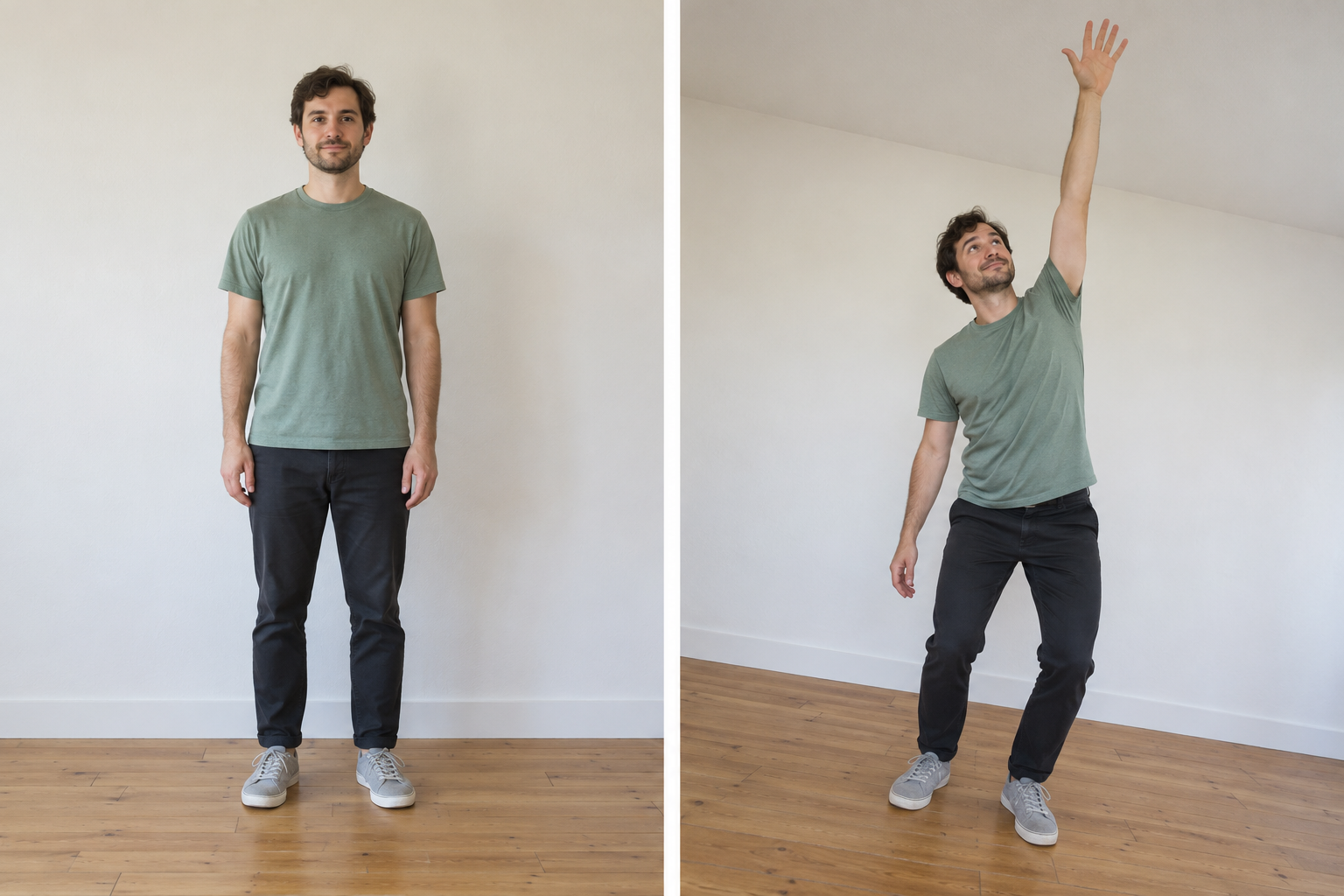
Photo comparison: follow the actual tool screens
Open the celebrity photo tool in another tab and follow these four steps. On a phone, the same controls stack vertically; scroll inside a dialog if a button is below the preview. Use the numbered highlights below each screenshot. On mobile, open “Enlarge screenshot with arrows” and use the numbered jump links for a closer view.
1. Choose a celebrity and upload your photo
Select Me vs celebrity, choose an available celebrity photo, then use Choose file under “Choose a full-length photo.” Select a PNG, JPEG or WebP file up to 10 MB. Your photo is processed locally in the browser.
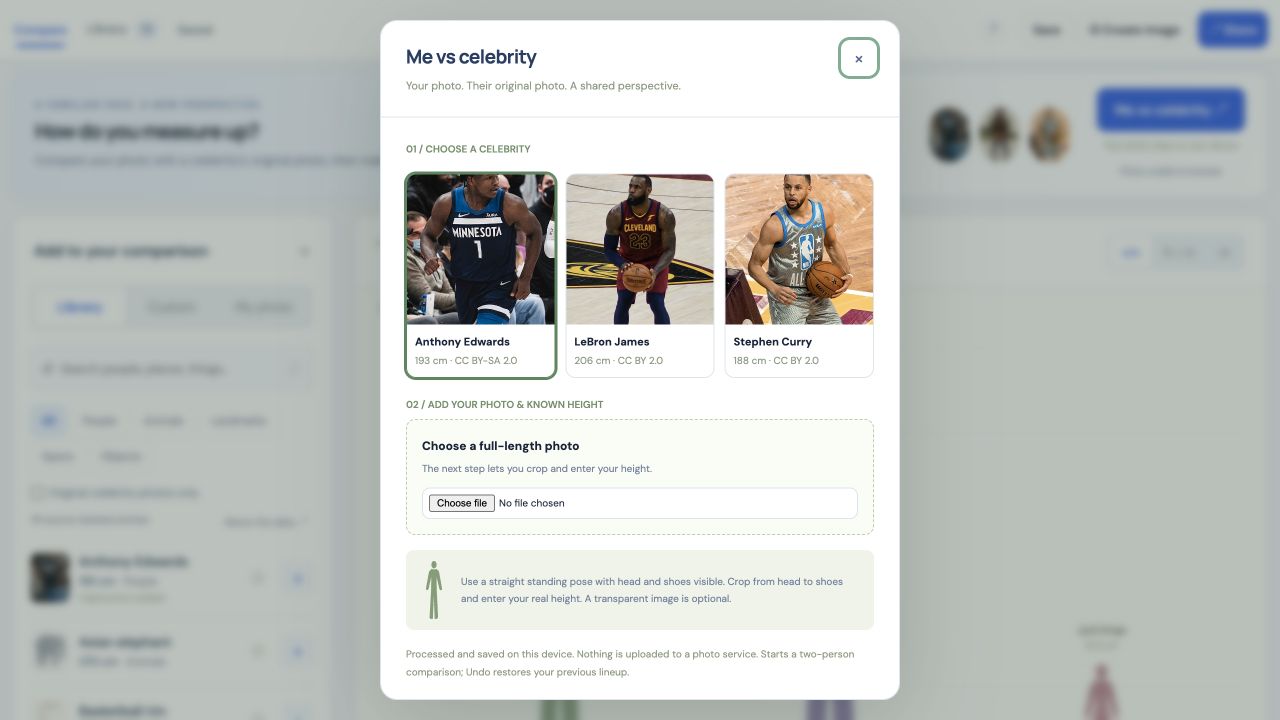
Follow the numbered highlights
- 1. Select the celebrity whose photo you want to compare.
- 2. Choose file selects your own full-length photo from this device.
Enlarge screenshot with arrows
Tap a numbered link to jump to that control. Swipe sideways or up and down inside the image to inspect it. This is a screenshot; open the actual tool to use the buttons.
2. Enter your height and crop head to shoes
In Bring your image to scale, enter your name and known height in centimeters. Adjust the top, bottom, left and right crop values until only the intended person remains, with the full head and shoes visible. The example isolates the straight-standing person on the left. These percentages suit this sample only; adjust them for your own photo. Leave white background tolerance at 0 to preserve the image.
Scroll down and select Add image subject, then select Compare our heights in the celebrity dialog. Check the names and numerical difference. The tool uses the height you enter; it does not measure height from pixels.
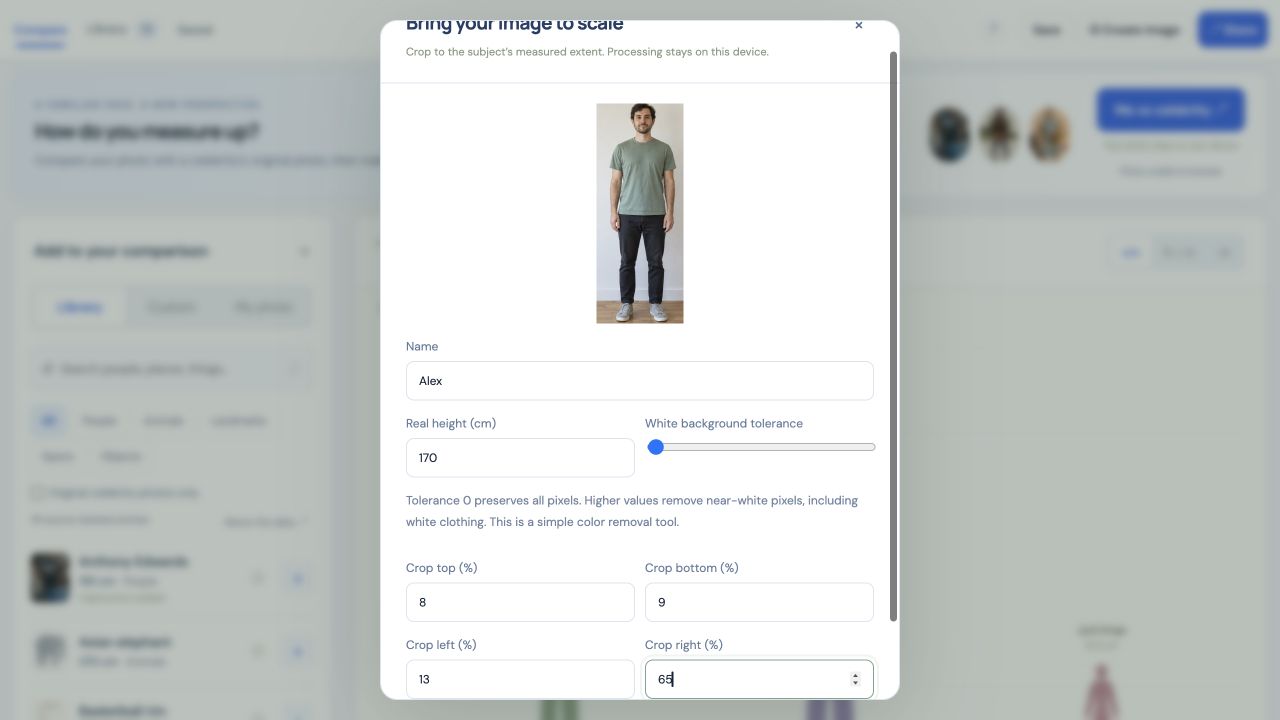
Follow the numbered highlights
- 1. Enter your known height in centimeters. This is not measured from the photo.
- 2. Adjust all four crop edges, then scroll down to Add image subject.
Enlarge screenshot with arrows
Tap a numbered link to jump to that control. Swipe sideways or up and down inside the image to inspect it. This is a screenshot; open the actual tool to use the buttons.
3. Create and download the PNG card
Select Create image above the chart. Choose Square, Portrait, Story / WhatsApp Status or Landscape, then choose a look and review the title and included subjects. Wait until the card says Ready, then select Download PNG. Your browser saves the file to its download location.
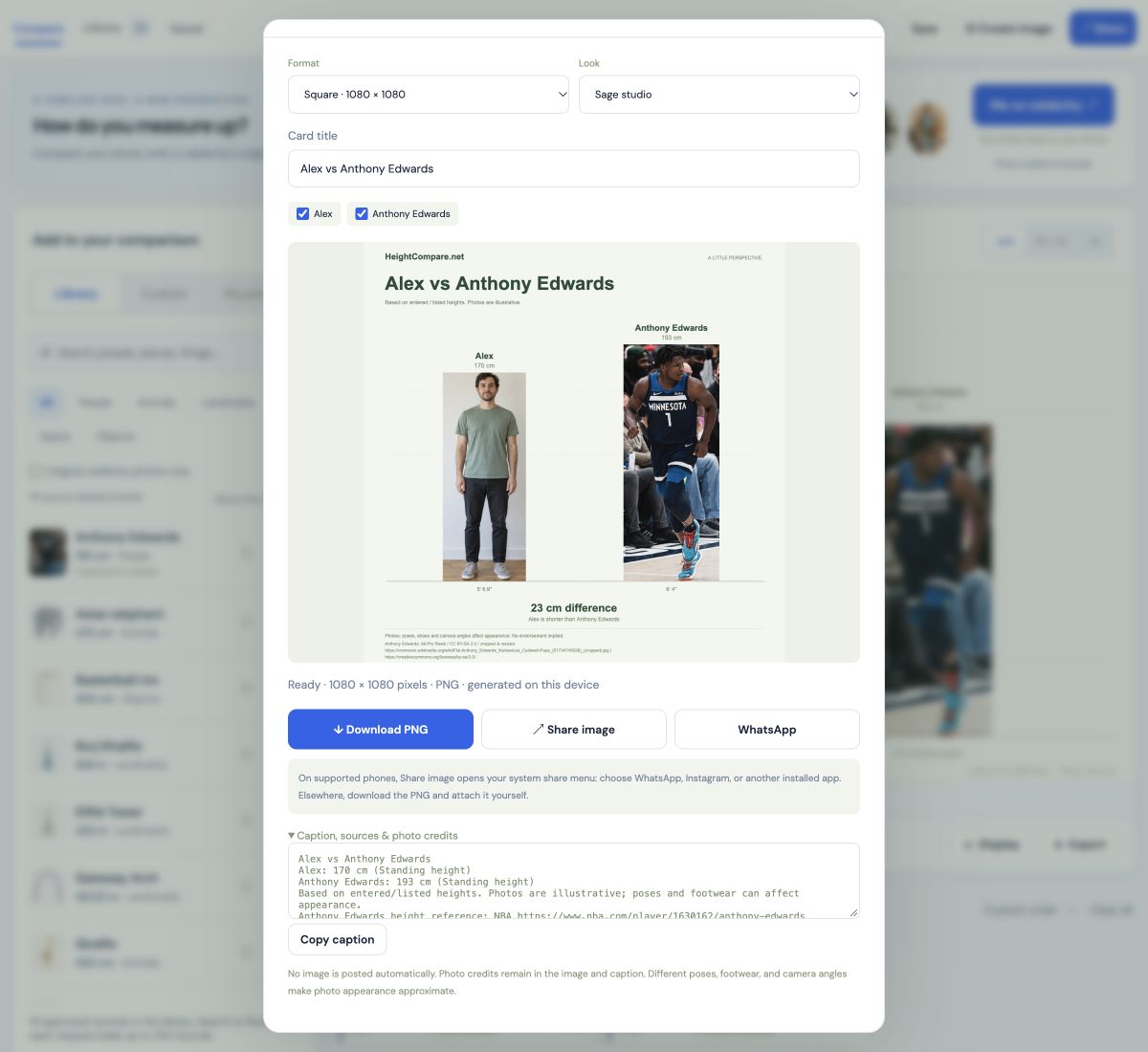
Follow the numbered highlights
- 1. Choose the image format: Square, Portrait, Story or Landscape.
- 2. Download PNG saves the generated image.
- 3. Share image opens the supported device share menu.
- 4. WhatsApp prepares a text caption only. Attach the downloaded PNG in WhatsApp.
- 5. Expand Caption, sources & photo credits, then Copy caption to keep the credits with your image.
Enlarge screenshot with arrows
Tap a numbered link to jump to that control. Swipe sideways or up and down inside the image to inspect it. This is a screenshot; open the actual tool to use the buttons.
4. Send the image and caption on WhatsApp
- On a supported phone, select Share image, choose WhatsApp from the device share menu, select the recipient and review before sending.
- If image sharing is unavailable, select Download PNG, open WhatsApp yourself, and attach the saved image from Downloads, Files or Photos, depending on your device.
- The tool’s WhatsApp button opens a prepared text caption only. It does not attach the PNG. Add the downloaded image in WhatsApp before sending it.
- Expand Caption, sources & photo credits and use Copy caption if you need to paste the caption alongside the attachment. Keep the photo credits with your shared card.
WhatsApp’s screens vary by device. Nothing is posted automatically; you choose the recipient and send the message yourself. If a download seems missing, check your browser’s download list. If a new window is blocked, allow the requested WhatsApp window or use the copy-caption route.
Screenshots show the actual HeightCompare interface with demonstration data. Alex is an AI-generated fictional person. Celebrity photos within screenshots: Anthony Edwards by All-Pro Reels, CC BY-SA 2.0 (cropped, resized and reproduced in screenshots; the photo adaptation retains this license). LeBron James and Stephen Curry by Erik Drost, CC BY 2.0 (cropped and resized). No endorsement is implied.
Respect sources and privacy
Celebrity photographs have separate reuse licenses and credits that remain in the card and caption. Your uploaded photo is processed and saved in this browser. Exporting a project backup can include it. See the privacy guide before sharing files or using a shared device.