
Couple Height Comparison
Two names, two heights and your own photos. Create a couple card without uploading your personal images to WordPress.
See your height difference, side by side
This couple height comparison tool places two people on the same baseline using the measurements you enter. Personalize each person’s name, choose centimeters or separate feet and inches, and create an image with silhouettes or your own photos. It works for partners, friends and any two people you want to compare.
How to make your couple height chart
- Enter both names and known heights. Names are optional; the default labels work too.
- Optionally add a full-length photo for either or both people.
- Crop each photo from the top of the head to the bottom of the feet. Remove empty space at the sides.
- Choose a title, style and image format. Review the gap and download your PNG.
A worked example
If one partner is 170 cm and the other is 183 cm, the height difference is 13 cm, approximately 5.12 inches. Both figures are scaled using the same centimeters-to-pixels ratio.
Feet and inches are separate fields: 5 feet 8 inches equals 172.72 cm. It is different from 5.8 decimal feet. The calculator accepts decimal inches and converts using exactly 2.54 cm per inch.
Photo upload, cropping and sharing: screenshot walkthrough
These are actual screens from the couple tool above. Names and heights are demonstration values. On a phone, scroll down from Person 1 to Person 2, then continue to the card controls. Use the numbered highlights below each screenshot. Open “Enlarge screenshot with arrows” for a larger view with the same callouts.
1. Add both names, heights and optional photos
Enter each person’s name and height. Choose centimeters or separate feet and inches. Use Choose file in Person 1’s photo field to select a full-length PNG, JPEG or WebP file up to 10 MB. Repeat in Person 2’s photo field if you want two photos. Either person can keep a silhouette.
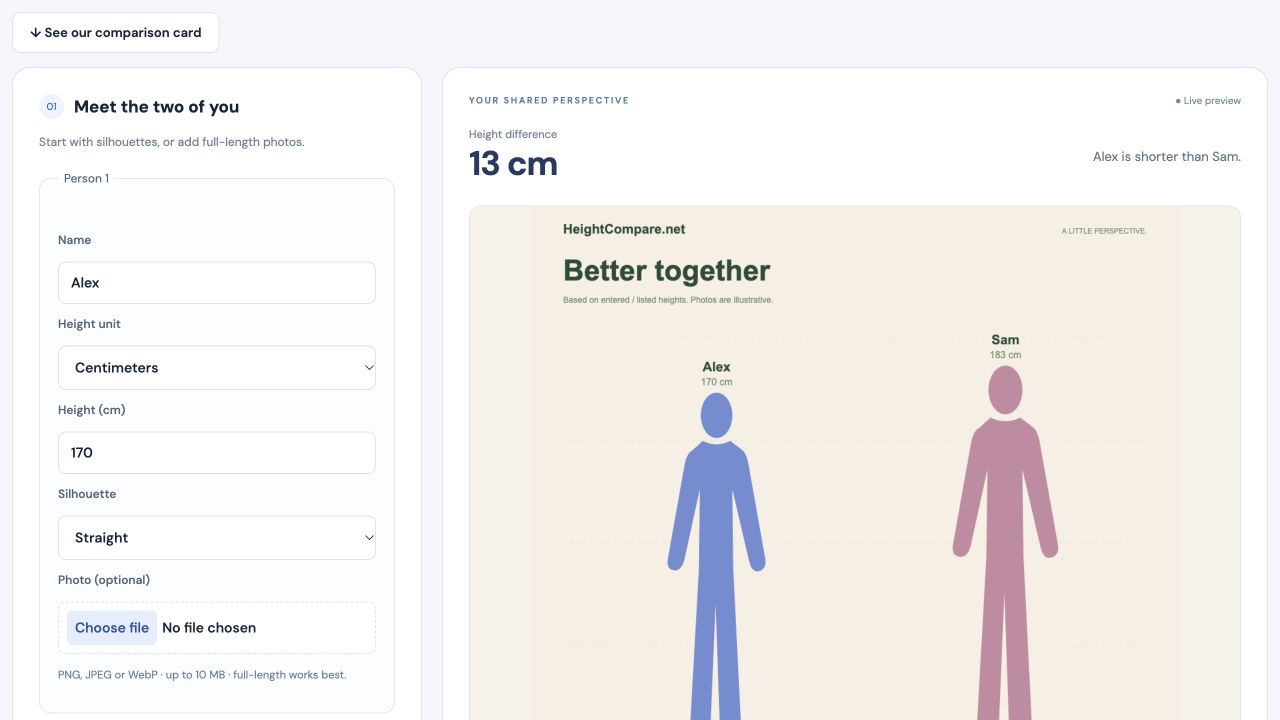
Follow the numbered highlights
- 1. Enter the first person’s name. Repeat the fields for Person 2 further down.
- 2. Enter the known height, checking the selected unit.
- 3. Choose file opens your device’s photo picker. Photos are optional.
Enlarge screenshot with arrows
Tap a numbered link to jump to that control. Swipe sideways or up and down inside the image to inspect it. This is a screenshot; open the actual tool to use the buttons.
2. Crop each photo and confirm
Adjust Crop top, Crop bottom, Crop left and Crop right until the selection follows the intended person from head to feet. Keep the head and shoes inside the highlighted area. Select Use cropped photo. Use Adjust crop to reopen it, or Remove photo to return to a silhouette. Repeat for the second person. Use your own crop values; the example percentages are specific to this sample image.
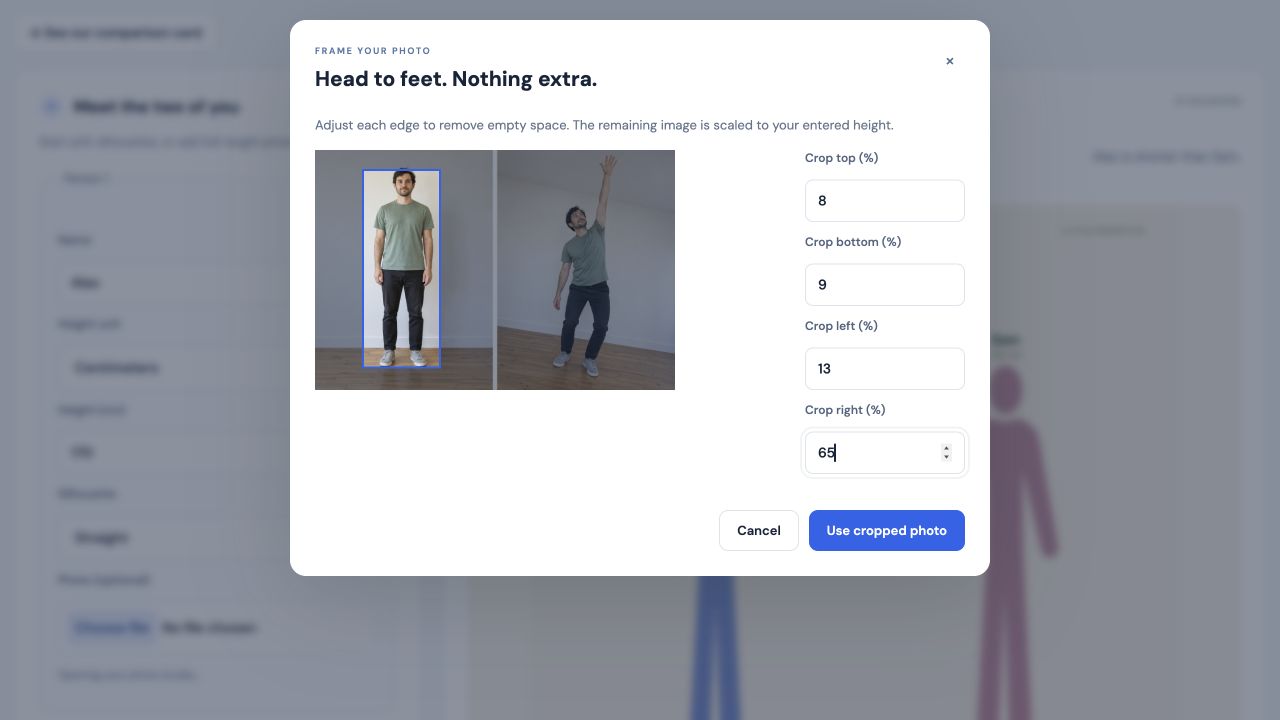
Follow the numbered highlights
- 1. Keep the full head and feet inside the highlighted crop.
- 2. Adjust the four crop percentages for your own image.
- 3. Select Use cropped photo to apply this crop.
Enlarge screenshot with arrows
Tap a numbered link to jump to that control. Swipe sideways or up and down inside the image to inspect it. This is a screenshot; open the actual tool to use the buttons.
3. Choose a format and download your card
Under Make it yours, set the title, card format and style, then select Update our comparison. Review the preview and height difference. When the card is ready, select Download PNG. The confirmation says “PNG downloaded. Attach it in your chosen app.” Your browser’s download list shows the saved file. This screenshot uses silhouettes; the same download controls work with photos.
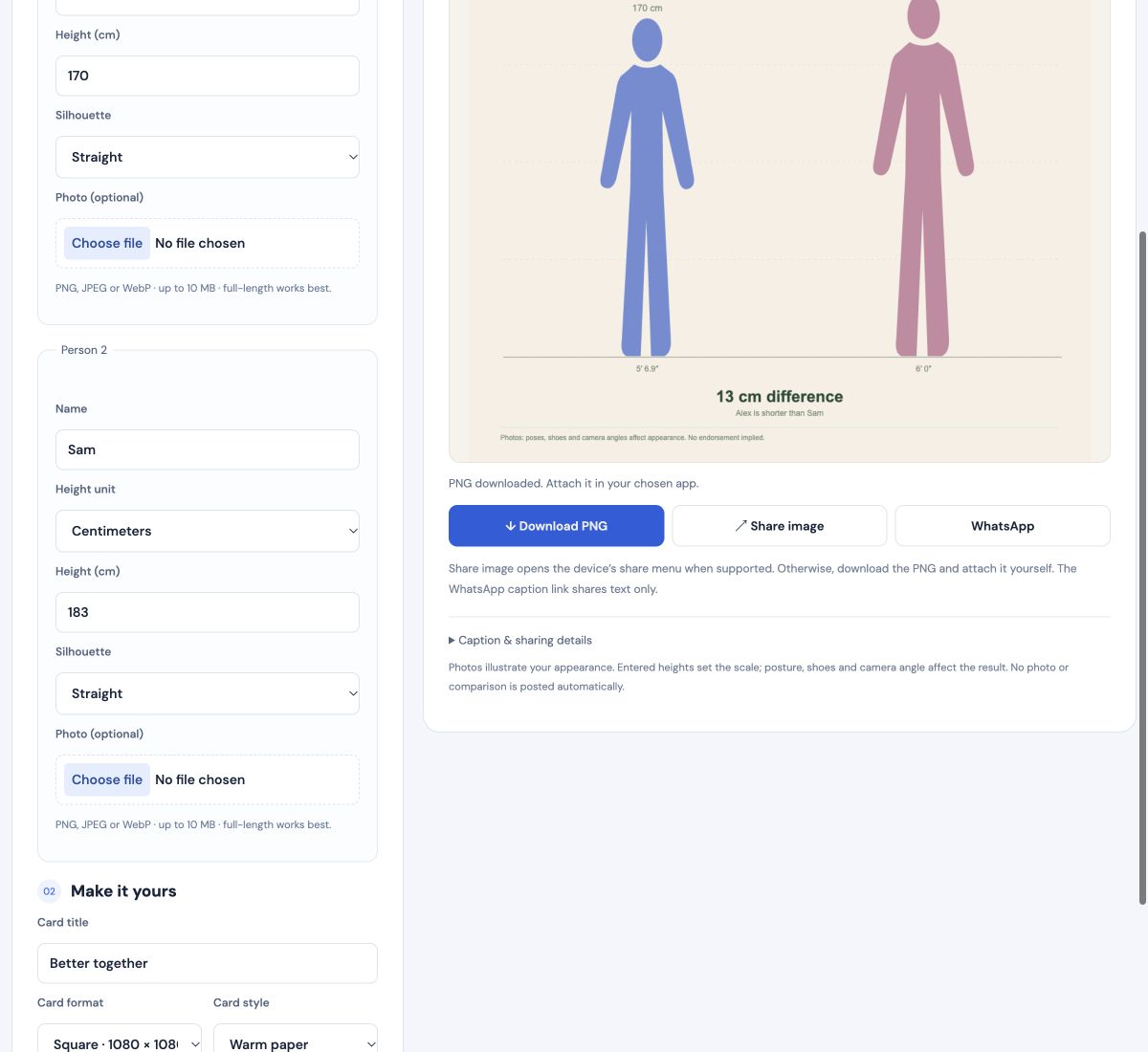
Follow the numbered highlights
- 1. Select Download PNG to save the card.
- 2. Check the downloaded confirmation, then find the file in your browser’s download list.
Enlarge screenshot with arrows
Tap a numbered link to jump to that control. Swipe sideways or up and down inside the image to inspect it. This is a screenshot; open the actual tool to use the buttons.
4. Share the PNG and caption on WhatsApp
Share image opens the device share menu where supported. Choose WhatsApp, select the recipient and review before sending. If that option is unavailable, download the PNG, open WhatsApp and attach it yourself.
The WhatsApp button shares a text caption only. It does not attach the image. Expand Caption & sharing details and select Copy caption if you want to paste it beside the downloaded attachment. Nothing is posted automatically.
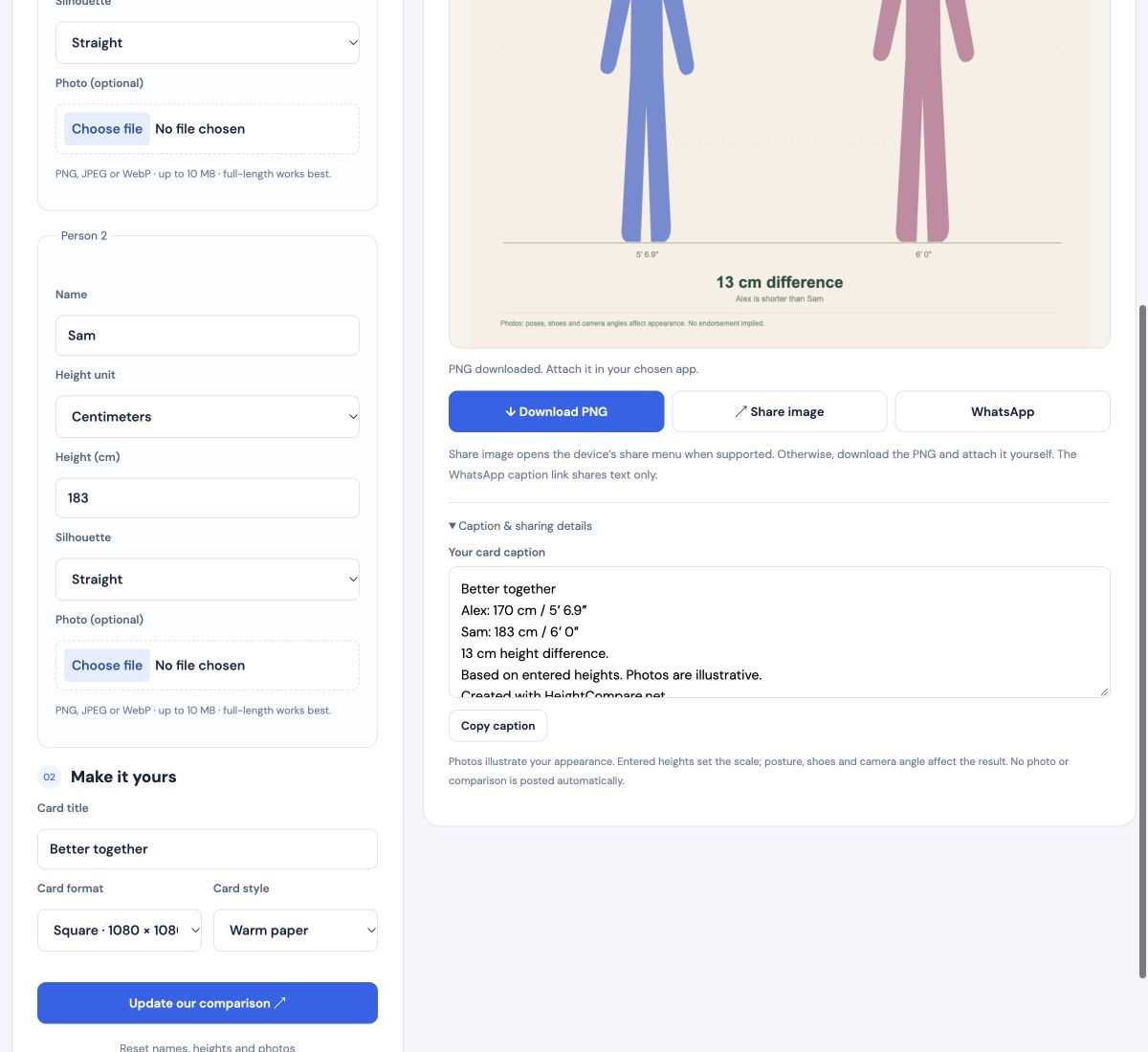
Follow the numbered highlights
- 1. Share image opens the device share menu where supported.
- 2. WhatsApp opens a text caption. Attach the downloaded PNG yourself.
- 3. Expand Caption & sharing details and use Copy caption when attaching the image manually.
Enlarge screenshot with arrows
Tap a numbered link to jump to that control. Swipe sideways or up and down inside the image to inspect it. This is a screenshot; open the actual tool to use the buttons.
See the separate celebrity photo walkthrough for the Me vs celebrity flow.
Photo tips for a fair comparison
Stand upright, look forward and keep the head and feet visible. Use photos taken from a similar camera height. Crop away space above the head and below the feet, because the entire remaining crop is treated as your entered height. If your photo contains a raised arm or bent knees, the image will be less representative even though the numerical height difference remains correct.
There is no ideal couple height difference
This is a measurement and visualization tool. It does not calculate attraction, compatibility or relationship success. Equal heights and any order of taller or shorter partners are supported without assigning a score.
Frequently asked questions
Can I use this without uploading a photo?
Yes. Each person starts as a silhouette. You can use two silhouettes, two photos or one of each. The entered height controls the scale in every case.
Are my photos uploaded or saved?
This page processes photos locally in the browser and holds them in this tab’s memory. It does not save the couple project in browser storage or send photos to an image service. Reloading or resetting clears them. Downloaded cards remain on your device, and files you choose to share are handed to the selected app.
Can this measure height from a picture?
No. Enter a known height for each person. Cropping and camera perspective affect the picture; the tool cannot establish real height from a photograph.
How do I share the couple card on WhatsApp?
Choose WhatsApp to try your device’s image share menu. If it is unavailable, download the PNG, open the caption link and attach the image manually. The link cannot attach the image for you. Nothing is sent until you complete sharing in WhatsApp.
Which card size should I choose?
Square is 1080 × 1080 pixels, portrait is 1080 × 1350, Story is 1080 × 1920 and landscape is 1200 × 630. Pick the format for the destination, then inspect the preview before downloading.